Favorites & client workflow
Favorites.
On your terms.
Your client chooses the frames. You choose what you need to know. A custom form, useful answers and a finished selection — in one gallery.
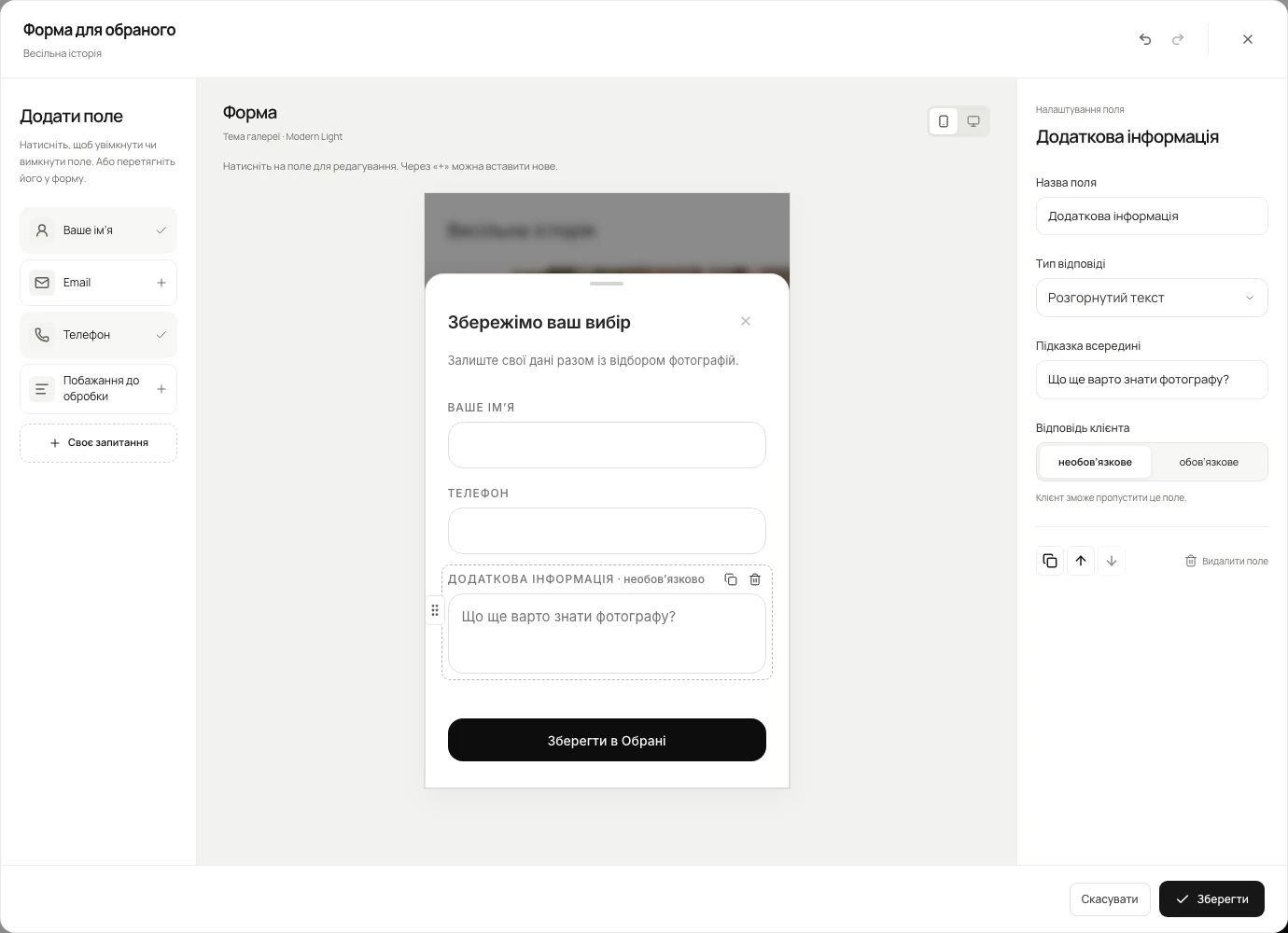
A name and phone number for a wedding album. An email for a commercial shoot. A quick question about retouching. Or no form at all when your client can simply open the gallery and start choosing.
We’ve rethought Favorites in Visuals. Photographers now build the form clients see when they save their first favorite. Choose the fields, their order and which answers are needed to continue. The details stay beside the selection, where you need them for your work.
From setup to a working selection
01Start with what matters
Ask for the details you actually need.
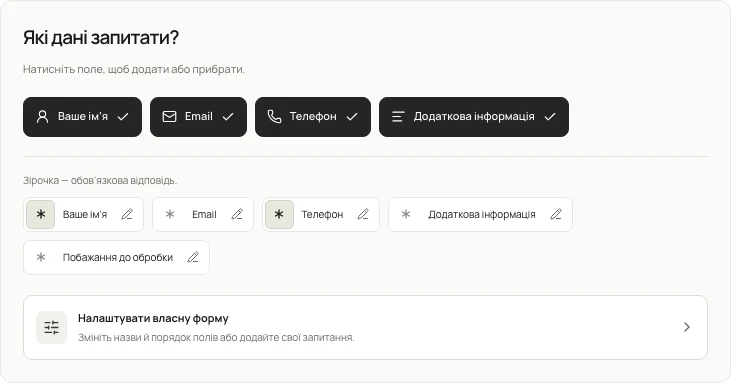
Open gallery settings → “Selections & reviews”. Add name, email, phone or additional information with one click. Click an active field again to remove it.
A quick selection might only need a name. Wedding prints might need a name and phone number. A brand shoot might need a contact email and a note about how the photos will be used. With no active fields, clients start choosing straight away.
02Your own form
Your form. Your questions.
Choose “Customize your own form”. Add a question, change its label and write a hint. Four answer types are available: plain text, email, phone and long text.
Drag fields into place or use the arrows. Duplicate a field, remove what you don’t need and undo a change. The center of the editor shows how the client’s form comes together as you edit.
03Required answers
You decide what’s needed to continue.
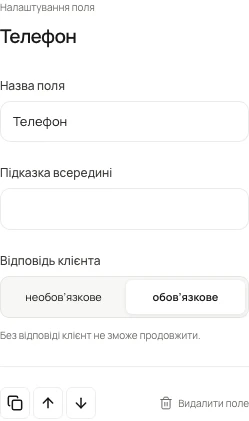
Set each field as required or optional. A phone number may be essential for arranging prints, while retouching wishes can stay optional.
Required answers are checked both while filling in the form and on the server. Clients can skip a blank optional field. You get the essentials and leave room for useful context.
04The client’s view
The same gallery. The same character.
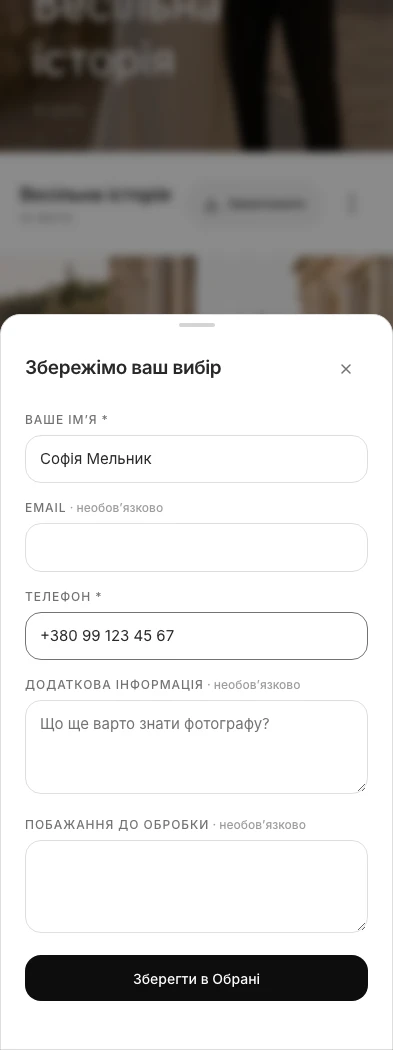
Your fields appear when the client taps their first heart. After filling them in, they continue choosing in the same gallery, without opening a separate questionnaire.
The form follows the gallery’s active theme: restrained Pure or Modern Light. In the editor, check its phone and desktop appearance before saving. Below are the real client windows in both themes.
05The client card
Answers beside the photographs.
Name, phone, custom questions and additional information appear in the client card on the Favorites tab. Their lists and selected files sit beside them. No searching through messages for a number or another app for album wishes.
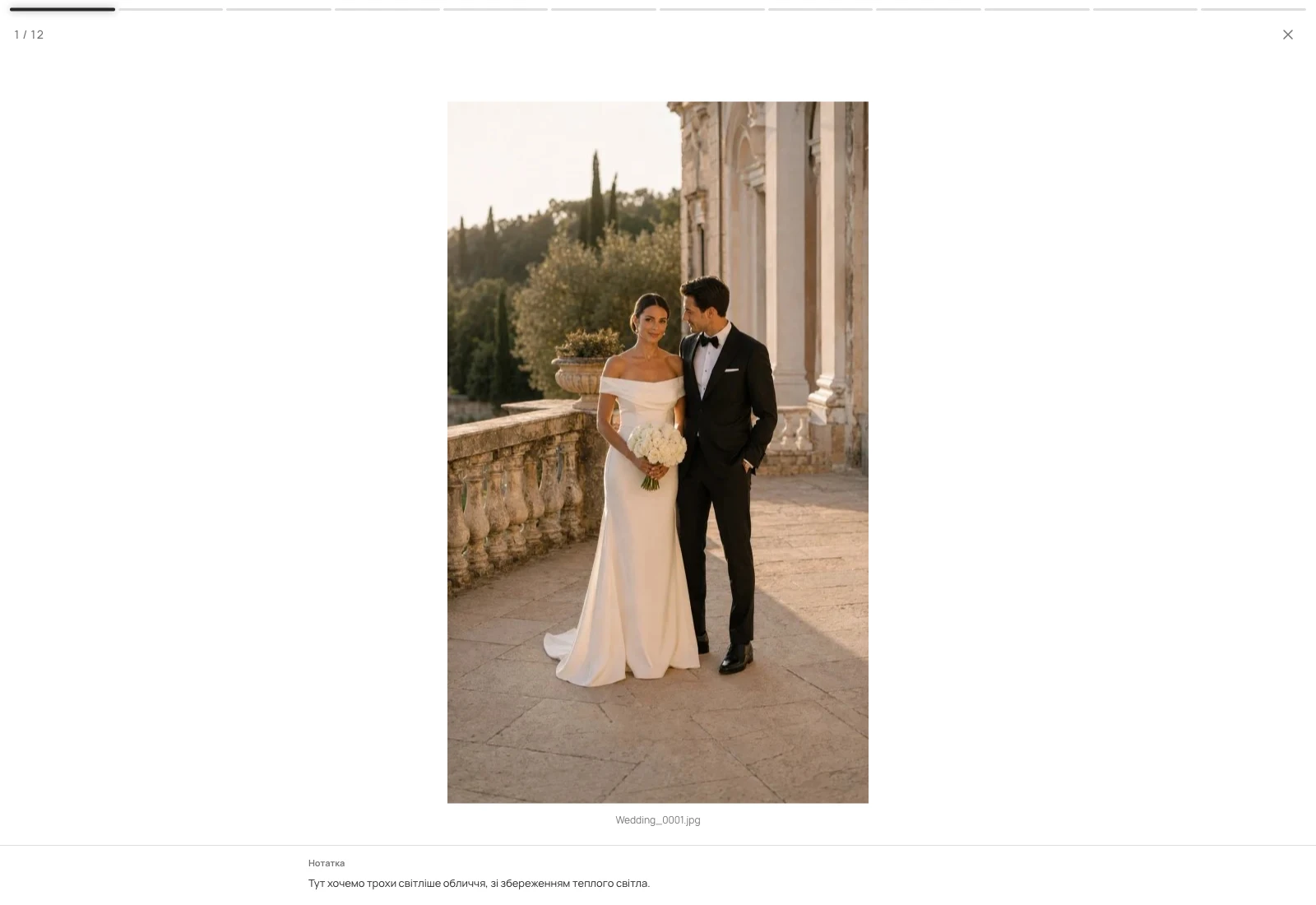
General wishes and a note on a particular frame remain separate. The form explains the assignment; the photo note explains a specific change. Additional answers are not exposed through shared selection links.
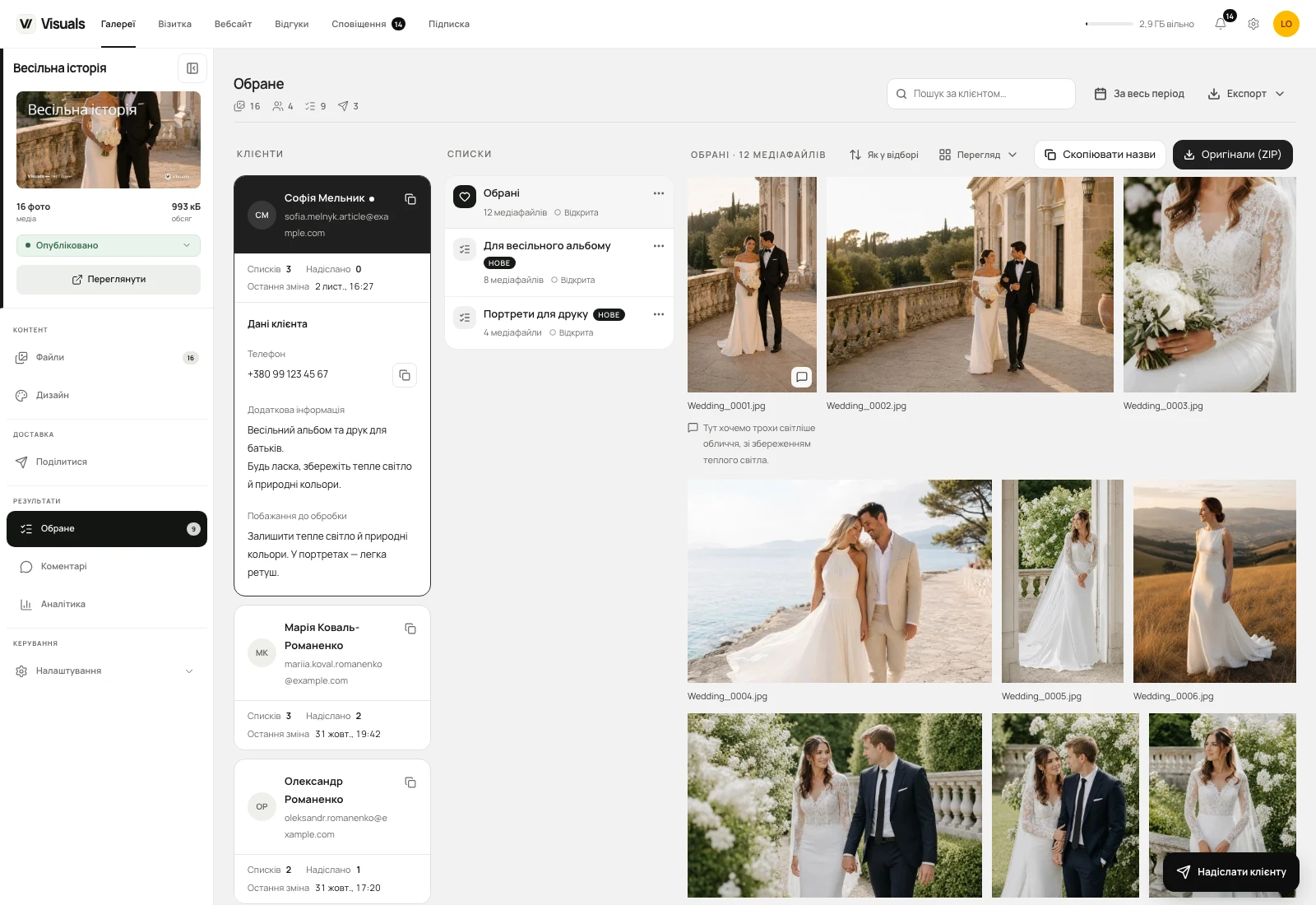
06Ready to work
From the first heart to a selection you can use.
Your familiar tools are still here: named lists, limits, notes, completed selections and original ZIP downloads. Put files with comments first, change thumbnail size or open the real photo preview with its note.
Found a form that works? Copy its settings to the next gallery. The question structure travels with the settings; the previous client’s personal answers stay in their gallery.
A few answers before the first heart
Do I have to enable a form?
No. Leave the form without active fields and clients can add files to Favorites straight away.
Can I ask for a phone number without email?
Yes. Choose your fields and mark the answers you need as required. Email is not a mandatory part of every form.
Can I add my own question?
Yes. The builder supports plain text, email, phone and long text. The photographer sets labels, hints and order.
Where do photographers see the answers?
In the client card on the Favorites tab, beside lists and selected files. Additional answers do not appear on the public selection link.
Your next selection can tell you more.
Open a gallery, choose the fields you need and add a question you would normally send in a separate message. Visuals keeps the frames and the context for your work together.
Try Visuals